Download graded video from your browser
LUTly can now export your clip with the grade already applied. Download an MP4 directly from the browser, ready to watch or share.
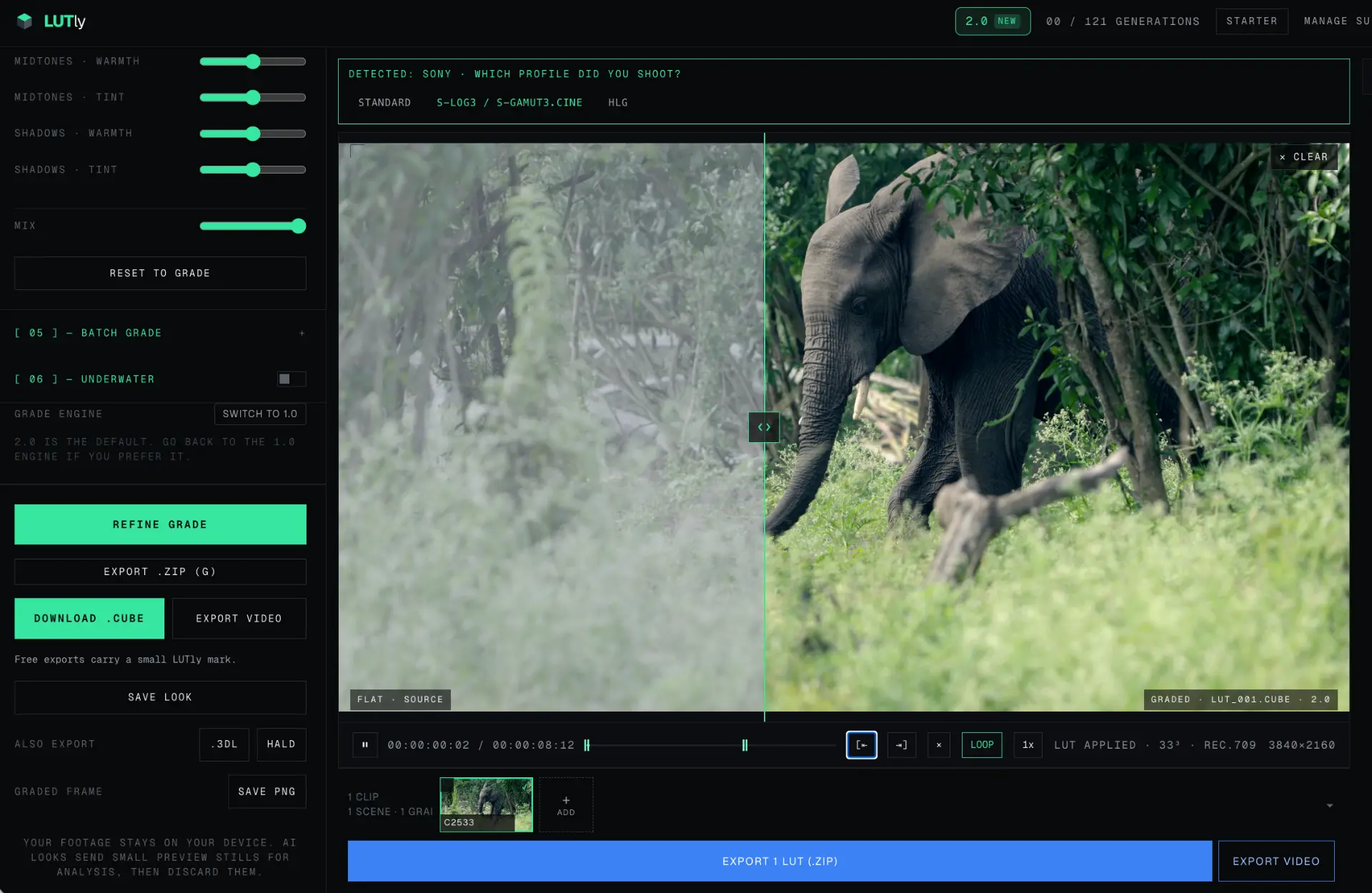
Find it beside the LUT export button beneath the viewer. It is also next to Download .cube in the left panel.
From a grade to a finished video
You can still download a .cube LUT to use in your editor. Export video gives you another output: a video file with your current grade and adjustments applied to every frame.
The export runs on your device. Your source video is not uploaded for rendering.
How to export your clip
- Open a video in LUTly. Use a single clip and generate a grade.
- Check the result. Compare it with the original and make any adjustments before exporting.
- Choose Export video. Use the button highlighted above. A progress bar shows the export running, with a Cancel option.
- Save the MP4. Once the export finishes, the browser downloads your graded video.
If you are using LUTly as a guest, complete the email step before your first export.
What is in the download?
The output is an MP4 with H.264 video and AAC audio when the source has audio. It keeps the source frame rate and resolution up to 4K.
Free and guest exports include the full clip with a small LUTly mark in the bottom right. Creator and Pro exports include the full clip without the mark.
Export video is for video clips. A still image can be graded, but it will not show a video export button.
Browser support and saving on iPhone
Video export needs a browser that supports H.264 encoding through WebCodecs. LUTly checks for support and hides the button when the browser cannot encode the video. Try a current desktop browser if the button is missing.
The mobile web app is in beta. Use a desktop for best results.
On a supported iPhone, tap Save video after the export finishes to open the share sheet, then choose Save Video if it is available. A normal browser download goes to Files rather than Photos.